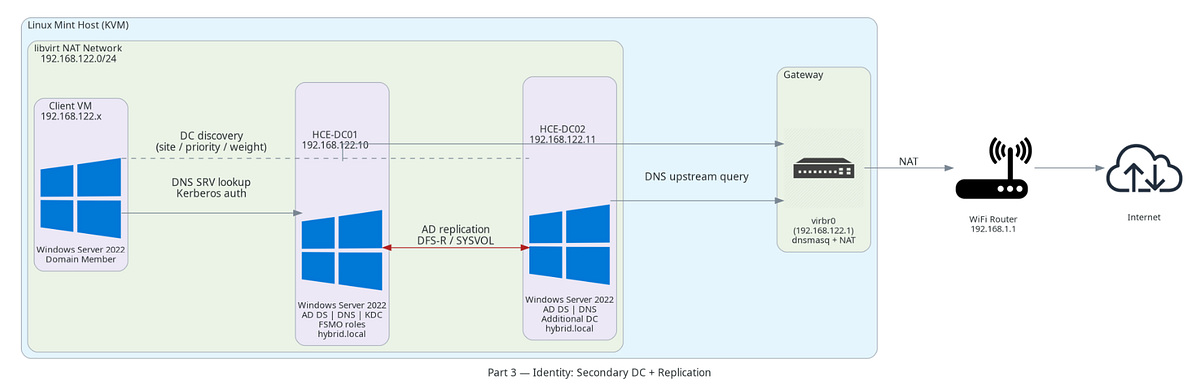
Previously, we created a domain controller (DC), joined a test virtual machine to the newly created domain and verified the authentication of a test user from client VM. In this part, we will build redundancy into our environment by introducing a second domain controller.
Active Directory (AD) is designed for multi-master replication, meaning multiple domain controllers hold a copy of the directory database.
Adding a second DC provides:
- High Availability — authentication continues if one DC fails
- Load Distribution — clients can authenticate against different DCs
- Replication Redundancy — AD database changes replicate automatically
In this part, we will:
- Provision a secondary domain controller
- Assign a static IP
- Join the domain
- Install AD DS and promote the server
- Verify replication and health
Let’s get started and add the second domain controller.
Provision Secondary domain controller
For the second DC, create another Windows Server 2022 VM using the same process outlined in the first part of this series.
Ensure that the newly created VM is attached to the same libvirt virtual network so it can reach the primary DC
Run ipconfig /all to confirm the network range, and gateway IP are the same as the primary DC. If you are following along then the gateway should be 192.168.122.1
Assign Static IP
Running ipconfig /all, you will notice a preferred IPv4 address for this VM. It is 192.168.122.145in my case. This IP was handed out by DHCP (dnsmasq) when the VM was created and attached to the virtual network. It can change the next time you restart the virtual network, and the VMs that have joined the domain will not be able to reach the DC. To avoid this, we will assign a static IP to this VM.
Open Server Manager
- Click Local Server
- Before setting the static IP, let us rename the computer to
HCE-DC02and restart. - After restart, go to Local Server and Click the link next to Ethernet
- A pop-up Right-click your Ethernet adapter → Properties
- Double-click Internet Protocol Version 4 (TCP/IPv4)
- Select Use the following IP address option
- Enter the below values:
IP address: 192.168.122.11 - The static IP we have chosen for secondary DC
Subnet mask: 255.255.255.0
Default gateway: 192.168.122.1 - Bridge’s IP
8. Select Use the following DNS server addresses
Note: Before executing this step, do a small test. Run nslookup and you will notice DNS query is sent to the gateway
_192.168.122.1_. dnsmasq, which runs on the gateway, cannot answer query abouthybrid.localand forwards it up the chain — to your WiFi router, then to your ISP’s DNS. None of them have ever heard of_hybrid.local_because it is not a public domain — it exists only inside the primary DC’s DNS. The query times out somewhere in that chain and returns nothing useful
Now, the secondary DC needs to rely on primary DC for any name resolution for domains managed by primary DC. In our case,
hybrid.localis visible only in the context of primary DC and for secondary DC to reach other virtual machines in hybrid.local domain, it must consult primary DC’s DNS. That’s why you must set the Preferred DNS server as 192.168.122.10
Set Preferred DNS server: 192.168.122.10
Once the above steps are completed, check if the static IP is updated by running ipconfig
Note around VM rename — Rename the server before promotion — renaming a DC after the fact is not recommended.
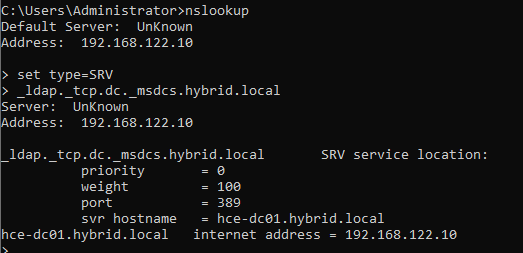
Now, we can verify domain controller discovery. Run nslookup in interactive mode
nslookup
set type=SRV
_ldap._tcp.dc._msdcs.hybrid.local
The SRV record should return the hostname of DC1.
Join the Domain
At this point, the VM is able to resolve the primary DC, and it has a static IP assigned. We just need one more step before promoting this VM as secondary DC. It must first be a domain member server.
Unlike the primary DC which created the domain during promotion, the secondary DC is joining a domain that already exists. It needs a computer object, and a secure channel established before the promotion wizard can authenticate against the existing domain and begin replication.
Run PowerShell as Administrator:
Add-Computer -DomainName hybrid.local -Credential HYBRID\Administrator -Restart
After reboot, log in as hybrid\Administrator
To verify domain membership, run whoamiThe current domain\user should be displayed hybrid\administrator
Install Active Directory Domain Services Role
Now that the VM (it’s not a DC yet) has joined the domain, the next step is to make it a domain controller.
Open Server Manager > Click Manage (top right) > Click Add Roles and Features > Click Next until you reach Server Roles > Check: Active Directory Domain Services> When prompted: Click Add Features > Click Next until Install & Click Install
Promote domain controller
After installation completes, click the notification flag. Select: Promote this server to a domain controller and follow the wizard. The server will reboot after installation automatically.
Note on deployment configuration —
While installing pay attention to these attributes
- when the wizard prompts for a forest, Select:
Add a domain controller to an existing domainProvide domain name ashybrid.local - Domain controller options —
a. checkDomain Name System (DNS) serverandGlobal Catalog
b. uncheckRead only domain controller (RODC)
c. Set a Directory Services Restore Mode (DSRM) password - Ignore the DNS delegation warning.
- In
Additional OptionschooseReplicate from:toHCE-DC01.hybrid.local
Verify Both Domain Controllers Exist
The secondary domain controller is set up now. Run the following validation to confirm the promotion succeeded.
On both the DCs, open Active Directory Users and ComputersNavigate to Domain Controller ,You should now see HCE-DC01and HCE-DC02
This confirms both DCs are part of the domain. We have successfully set up High availability for the domain controllers.
Verify Active Directory Replication
Active Directory replicates directory changes between the two controllers automatically. You can check that by running repadmin /replsummary
Example output:
Beginning data collection for replication summary, this may take a while:
…..
Source DSA largest delta fails/total %% error
HCE-DC01 14m:44s 0 / 5 0
HCE-DC02 02m:40s 0 / 5 0
Destination DSA largest delta fails/total %% error
HCE-DC01 02m:40s 0 / 5 0
HCE-DC02 14m:44s 0 / 5 0
Interpretation:
- largest delta → how long since last replication
- fails/total → replication failures
A healthy environment shows: 0 failures This proves multi-master replication is working.
After promotion and replication stabilizes, update DNS settings so each DC points to itself as primary and the other DC as secondary.
Verify SYSVOL Replication
Group Policies live in the SYSVOL folder and must replicate between DCs. Check the share exists by running net shareIt is a quick sanity check.
SYSVOL shares are only published by Windows when the DC considers itself healthy and SYSVOL replication is complete. Their presence confirms that DFS-R has done its job and this DC is ready to serve Group Policy to domain members.
Look for SYSVOL, if they are present, the replication of GPO is working fine.
Identify FSMO Role Holders
Even though AD supports multi-master writes, some operations must be handled by a single role owner to avoid conflicts. These are the FSMO roles (Flexible Single Master Operations).
Check which server holds them netdom query fsmo
Example output:
Schema master HCE-DC01
Domain naming master HCE-DC01
PDC HCE-DC01
RID pool manager HCE-DC01
Infrastructure master HCE-DC01
In small environments like this, all roles may remain on the first DC.
Note: multi-master covers most directory writes; FSMO roles are for the specific operations where a single authority is required to avoid conflicts.
Why Multiple Domain Controllers Matter
With two DCs:
- Both hold a replicated copy of the Active Directory database
- Clients discover them through DNS SRV records
- Clients choose a DC based on site proximity and priority
- If one DC is offline, clients automatically fail over
Authentication flow now becomes:
Client
↓
DNS SRV query
↓
List of Domain Controllers
↓
Client selects reachable DC
↓
Kerberos authentication
This is why clients never hardcode a Domain Controller IP. DNS provides the dynamic discovery layer.
Summary
In this part, we introduced a second domain controller and validated replication, establishing high availability for Active Directory.
Current lab state:
HCE-DC01 → First domain controller
HCE-DC02 → Additional domain controller
Client VM → Domain joined
This completes the Active Directory redundancy layer making it resilient.
In the next part, we will integrate a Linux VM and validate Kerberos-based authentication, extending identity beyond Windows systems.