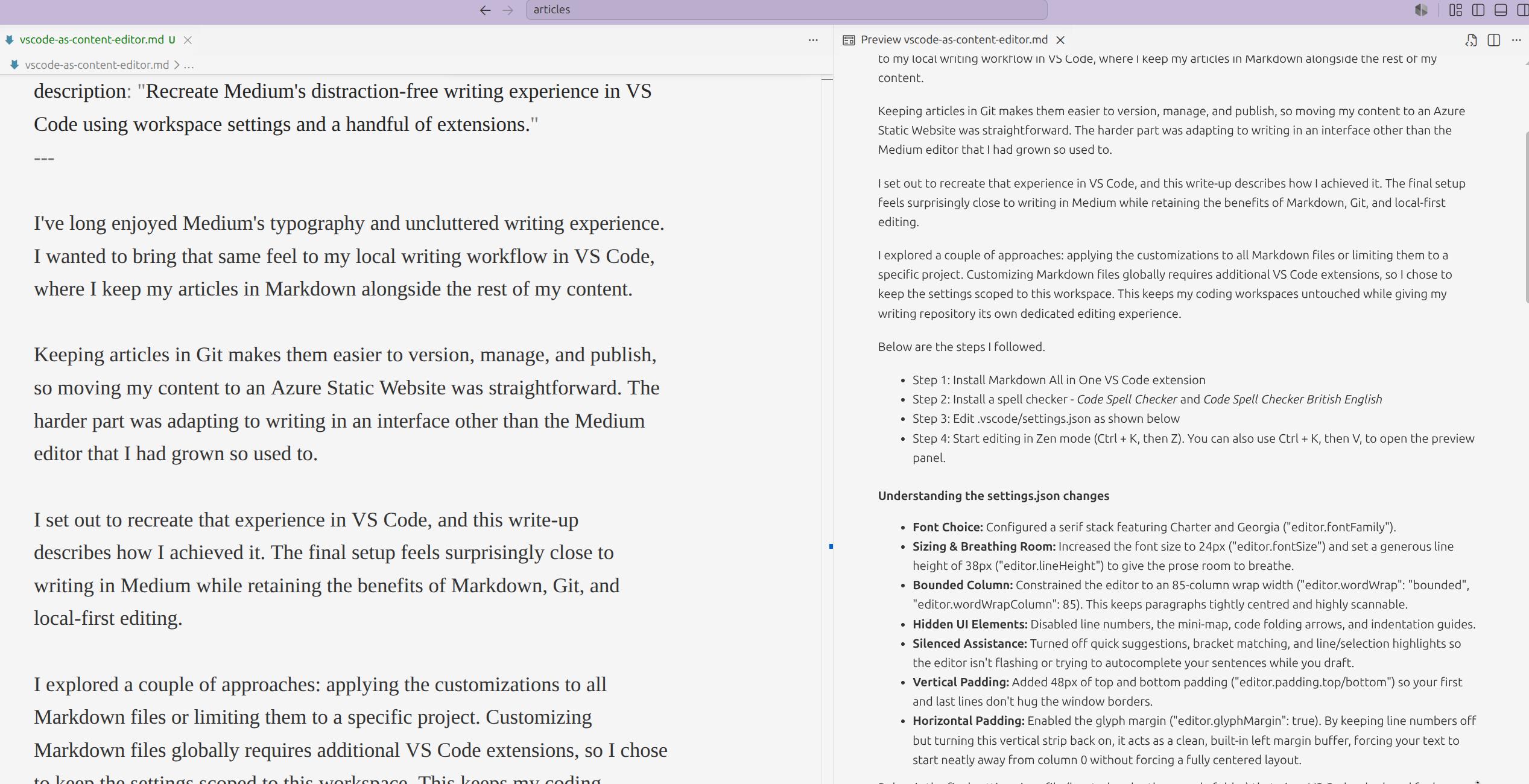
I’ve long enjoyed Medium’s typography and uncluttered writing experience. I wanted to bring that same feel to my local writing workflow in VS Code, where I keep my articles in Markdown alongside the rest of my content.
Keeping articles in Git makes them easier to version, manage, and publish, so moving my content to an Azure Static Website was straightforward. The harder part was adapting to writing in an interface other than the Medium editor that I had grown so used to.
I set out to recreate that experience in VS Code, and this write-up describes how I achieved it. The final setup feels surprisingly close to writing in Medium while retaining the benefits of Markdown, Git, and local-first editing.
I explored a couple of approaches: applying the customizations to all Markdown files or limiting them to a specific project. Customizing Markdown files globally requires additional VS Code extensions, so I chose to keep the settings scoped to this workspace. This keeps my coding workspaces untouched while giving my writing repository its own dedicated editing experience.
Below are the steps I followed.
- Step 1: Install Markdown All in One VS Code extension
- Step 2: Install a spell checker - Code Spell Checker and Code Spell Checker British English
- Step 3: Edit .vscode/settings.json as shown below
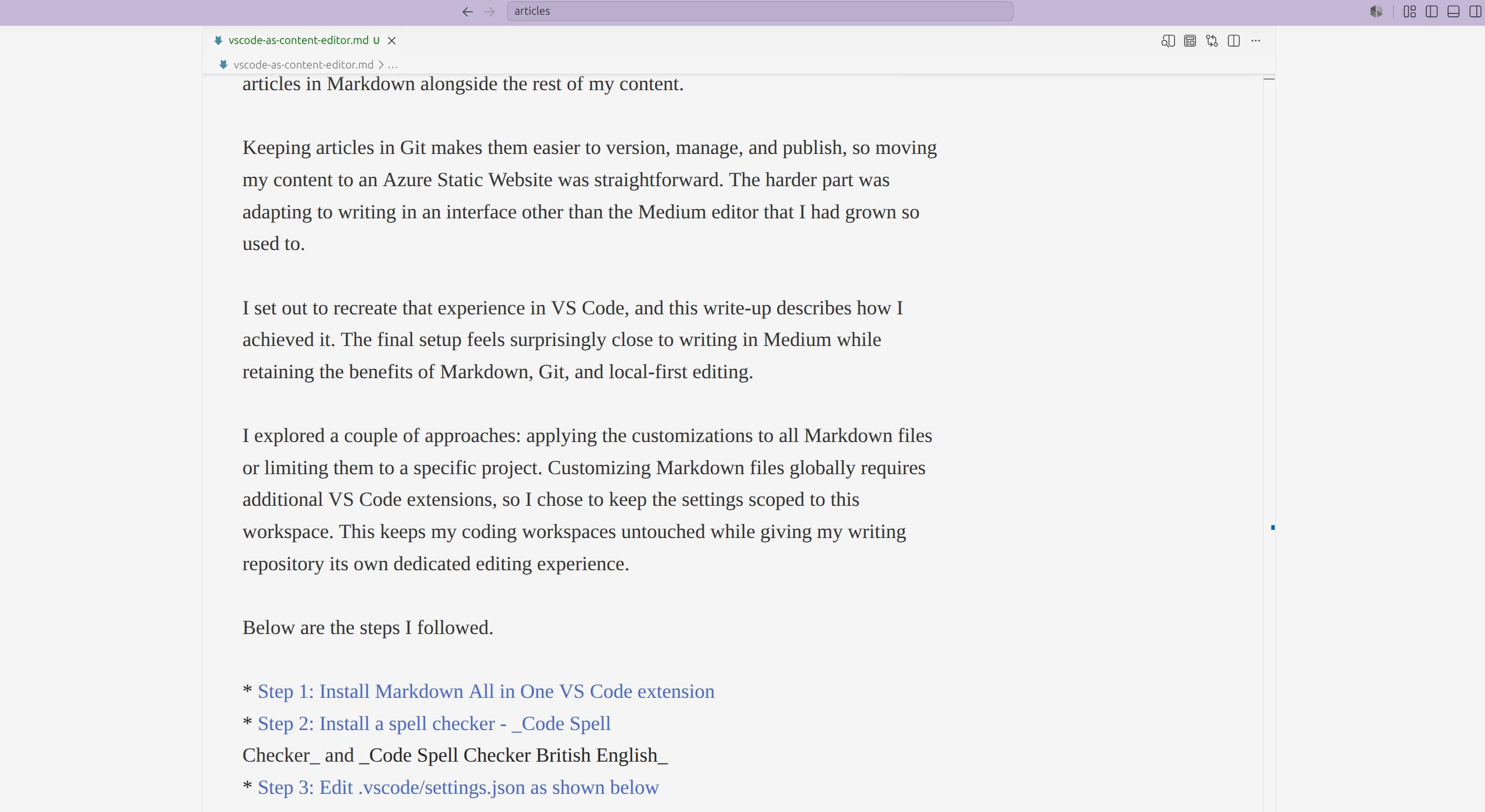
- Step 4: Start editing in Zen mode (Ctrl + K, then Z). You can also use Ctrl + K, then V, to open the preview panel.
Understanding the settings.json changes
- Font Choice: Configured a serif stack featuring Charter and Georgia (“editor.fontFamily”).
- Sizing & Breathing Room: Increased the font size to 24px (“editor.fontSize”) and set a generous line height of 38px (“editor.lineHeight”) to give the prose room to breathe.
- Bounded Column: Constrained the editor to an 85-column wrap width (“editor.wordWrap”: “bounded”, “editor.wordWrapColumn”: 85). This keeps paragraphs tightly centred and highly scannable.
- Hidden UI Elements: Disabled line numbers, the mini-map, code folding arrows, and indentation guides.
- Silenced Assistance: Turned off quick suggestions, bracket matching, and line/selection highlights so the editor isn’t flashing or trying to autocomplete your sentences while you draft.
- Vertical Padding: Added 48px of top and bottom padding (“editor.padding.top/bottom”) so your first and last lines don’t hug the window borders.
- Horizontal Padding: Enabled the glyph margin (“editor.glyphMargin”: true). By keeping line numbers off but turning this vertical strip back on, it acts as a clean, built-in left margin buffer, forcing your text to start neatly away from column 0 without forcing a fully centered layout.
Below is the final settings.json file (located under the .vscode folder) that gives VS Code a look and feel very similar to the Medium editor.
{
    "workbench.colorTheme": "Quiet Light",
    "zenMode.centerLayout": true,
    "cSpell.enabledFileTypes": {
        "markdown": true,
        "plaintext": true,
        "yaml": false,
        "json": false,
        "jsonc": false,
        "python": false,
        "javascript": false,
        "typescript": false,
        "html": false,
        "css": false,
        "scss": false,
        "less": false,
        "xml": false,
        "csv": false,
        "tsv": false,
        "log": false,
        "shellscript": false,
        "powershell": false,
        "batch": false,
        "makefile": false,
        "dockerfile": false,
        "terraform": false
    },
    "editor.tokenColorCustomizations": {
        "[Quiet Light]": {
            "textMateRules": [
                {
                    "scope": [
                        "markup.heading",
                        "markup.heading.1",
                        "markup.heading.2",
                        "markup.heading.3",
                        "markup.bold",
                        "markup.italic",
                        "markup.inline.raw",
                        "markup.fenced_code.block",
                        "markup.quote",
                        "markup.underline.link",
                        "punctuation.definition.heading",
                        "punctuation.definition.list.begin",
                        "punctuation.definition.bold",
                        "punctuation.definition.italic",
                        "punctuation.definition.raw",
                        "punctuation.definition.quote",
                        "meta.link.inline",
                        "string.other.link",
                        // YAML frontmatter scopes (the coloured title:, date:, tags: etc.)
                        "entity.name.tag.yaml",
                        "string.unquoted.plain.out.yaml",
                        "string.quoted.double.yaml",
                        "string.quoted.single.yaml",
                        "constant.language.boolean.yaml",
                        "constant.numeric.integer.yaml",
                        "punctuation.definition.block.sequence.item.yaml",
                        "meta.block-mapping.yaml",
                        "source.yaml"
                    ],
                    "settings": {
                        "foreground": "#242424",
                        "fontStyle": ""
                    }
                }
            ]
        }
    },
    "[markdown]": {
        "editor.fontFamily": "'Charter', 'Georgia', 'Cambria', 'Times New Roman', serif",
        "editor.fontSize": 24,
        "editor.lineHeight": 38,
        "editor.fontWeight": "400",
        "editor.wordWrap": "bounded",
        "editor.wordWrapColumn": 85,
        "editor.lineNumbers": "off",
        "editor.minimap.enabled": false,
        "editor.glyphMargin": true,
        "editor.folding": false,
        "editor.padding.top": 48,
        "editor.padding.bottom": 48,
        "editor.occurrencesHighlight": "off",
        "editor.selectionHighlight": "off",
        "editor.renderLineHighlight": "none",
        "editor.guides.indentation": false,
        "editor.matchBrackets": "never",
        "editor.quickSuggestions": {
            "other": false,
            "comments": false,
            "strings": false
        }
    }
}
VS Code will never be Medium, but with a few carefully chosen settings it becomes an excellent long-form writing environment—one that sits right beside your source control, publishing pipeline, and documentation.
Editor in Zen Mode
Editor with Markdown Preview